To view all information that has been inputted on your account go to Account Management and then go to Operating Statement of Accounts.
Click the arrow link in front of the account number.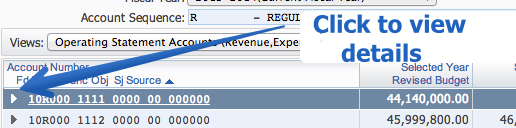
Expand All will show you the following information:
- Monthly Account Activity – A full year of activity is displayed. If a month is shown in blue ink versus black you can click on it to view check activity. Now click on the arrow by the posting date and you will get a line-by-line list of vendor names, invoices, dollar amounts, and check numbers that were run with that batch.
- Detail Account Activity provides a high-level summary of activity that has hit the account.
- Account Encumbrance Activity provides details on claims on funds that are designated to be paid via a PO but have not yet been invoiced and paid.
- Purchase Orders Using This Account lists all purchase orders generated. (Note the first 3 digits of a PO let you know what group or dept. entered it. Each area has been assigned a number – for example: East Science Dept. 119.)
- Accounts Payable Invoices Using This Account only shows that an invoice has been received at district.
- Credit Card Transactions Using this Account is not presently used by Glenbard. Pcard transactions can be found under Detail Account Activity.
- Account Budget Activity lists the budget
- Account Description shows name, fund as either educational/O&M/Trans., type as either revenue or expense, location or school/district, function or department, object of account such as supplies for example, subject or sub-object category, and source of funding such as Grant, Title 1
- Account Information notes if account is active or inactive.