DOCS
  • PowerSchool
  • Manuals
  • Teachers
  • Log In
  • PowerSchool
  • Manuals
  • Teachers
  • Log In
  • Home
  • FAQs
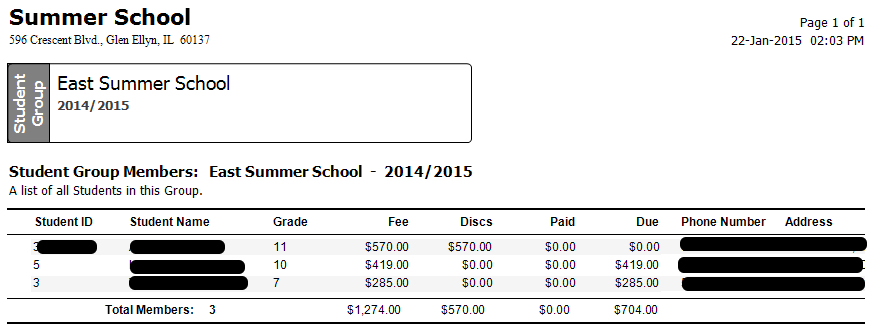
  • Print a List of Students and Account Balances

Print a List of Students and Account Balances

Published on February 12, 2016
  1. Click on Student Reports.
  2. Click on Student Group Members.
  3. In the 2nd drop-down under Student Group, click Homeroom
  4. Then click on the school.
  5. To only print students with balances owed, change the Due filter to > 0.
  6. Click the Preview button to get a PDF or the Print button to print immediately.
Previous

How to log in

Next

Print a List of Students with Fee Detail (All Fees or One Fee)
  • Print a List of Students and Account Balances
  • Print a List of Students with Fee Detail (All Fees or One Fee)
  • Print Account Statements in Mass
  • Looking Up Students
  • Students with Other, Less Expensive, Fines
  • Students with Other, More Expensive, Fines
  • Students without Other Fines
  • I Can’t Find a Student
  • How Many Machines Can We Run?
  • The Spare Units State They Can’t Find a Server
  • There are iPad charges on my statement. How can I get this removed since my student is bringing his/her own device?
  • What are my payment options?
DOCS

All rights reserved

Searching in

Enter search term to find items
to navigate, to select, and to close
Login